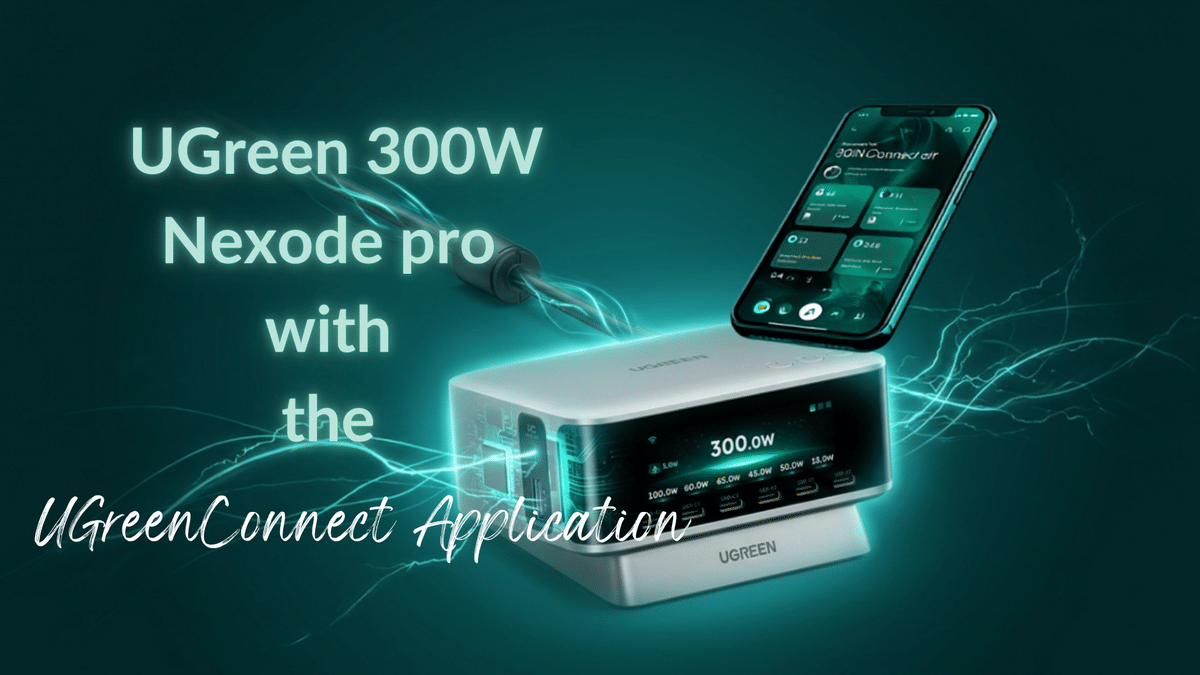
A 300W desktop charger with Wi-Fi, Bluetooth, a display, and a phone app sounds like a whole lot of tech for something that is supposed to sit on a desk and charge gear. That was my question too. Once the full UGREENConnect app became available for the UGREEN Nexode Pro 300W GaN Desktop Charger, though, the smart features started making a lot more sense.
This is not just an app that shows a number on a screen. It gives real control over where the charger’s total power goes, which is exactly what matters when several devices are connected at once.
Key Takeaways
The UGREEN Nexode Pro provides eight ports with a shared 300W total output budget.
UGREENConnect displays live power draw for each port as devices are connected.
Priority Charging can reserve power preference for up to three selected ports.
Custom Power lets you save port wattage allocations without exceeding 300W.
Table of Contents
The charger and app connection
The UGREEN Nexode Pro is an eight-port desktop charging station with up to 300W of total output. It includes three USB-C ports capable of up to 140W each, along with a DC output that can provide up to 240W for compatible equipment.
The charger has its own integrated display for total output, active-port wattage, and connection information. The UGREENConnect app takes that information further by putting all the ports, charging modes, and power controls in one place.
On the device page, the app displays a graphic of the charger and its eight ports. When nothing is connected, each port reads zero. Plug in even a small LED light and the app updates to show its draw. In this case, the light registered at just 1W, but the point is that the app is showing live power activity instead of leaving you guessing.
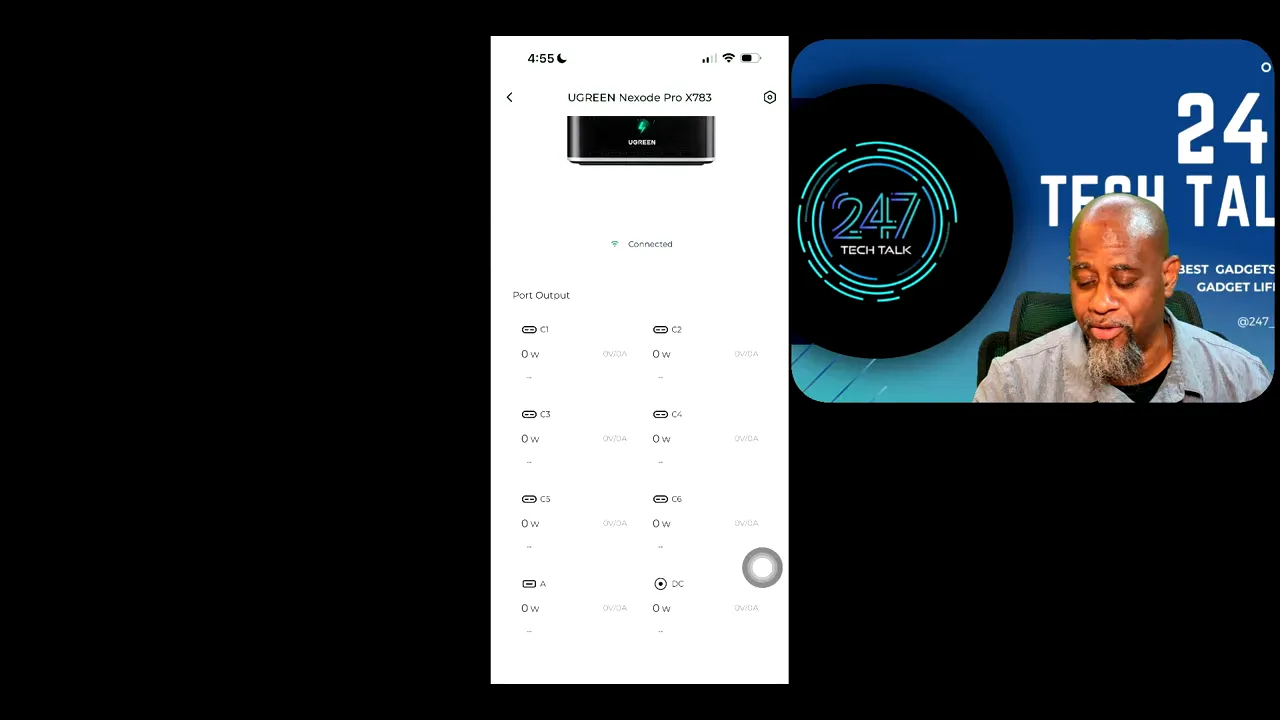
The main device page gives a quick look at what each connected port is drawing.
Five charging modes in UGREENConnect
Opening the settings gear and selecting Charging Modes reveals five options:
Adaptive Power
Thermal Safe Charging
Priority Charging
DC Turbo Charging
Custom Power
Some of these are simple switches. Others are the reason the app is genuinely useful.
Adaptive Power
Adaptive Power is the set-it-and-forget-it option. It is designed for charging multiple devices and intelligently matching each device with appropriate power. If all you want to do is connect your devices and let the charger manage the power budget, this is the easy mode to use.
Thermal Safe Charging
Thermal Safe Charging is another on or off setting. It is intended to provide a battery-protective charging mode, giving a little extra peace of mind when gear is connected for longer periods.
Priority Charging
Priority Charging is useful when every port is busy, but one or two devices matter more than the rest. The app allows configuration of up to three priority ports.
For example, if you have several devices plugged into the eight-port station, you can tell the charger that specific USB-C ports should receive priority. That is a practical feature for a desk setup where a laptop, tablet, phone, camera battery, light, and other accessories may all be competing for power.
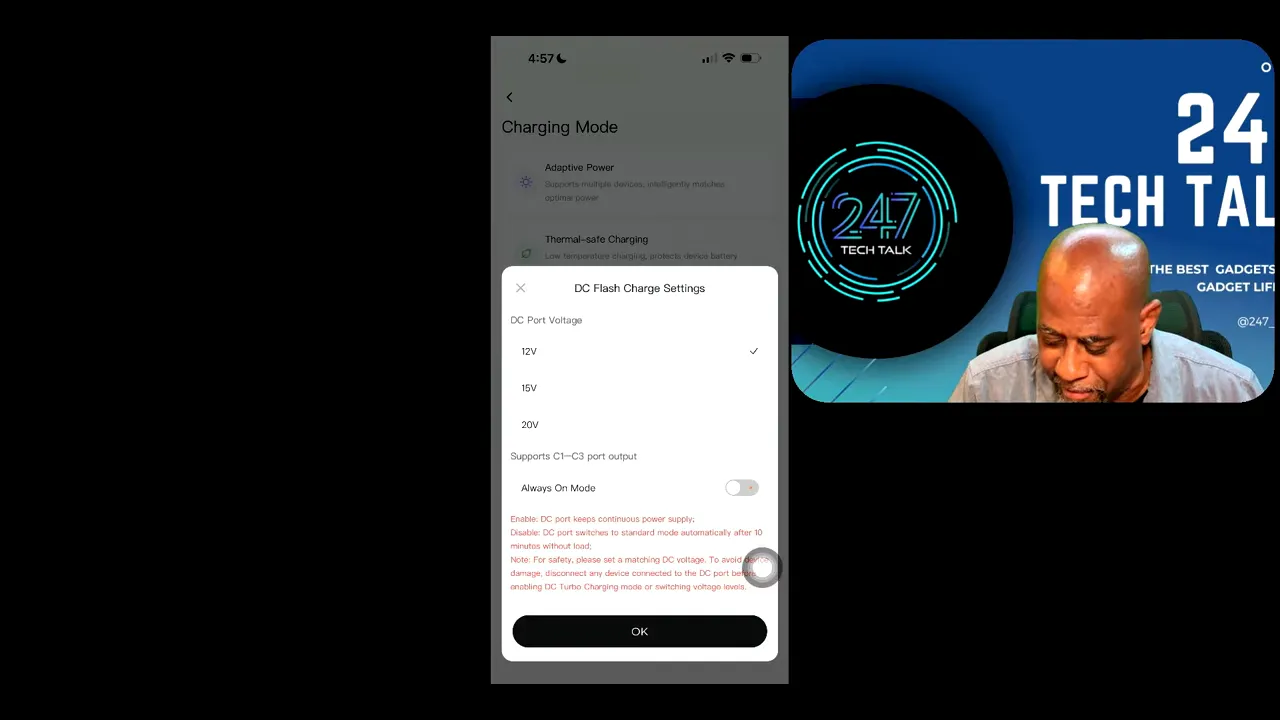
Priority Charging lets you choose up to three ports that should take precedence when several devices are connected.
DC Turbo Charging
The DC Turbo Charging setting applies to the charger’s DC output. Enabling it keeps a continuous power supply active, and the app provides voltage choices of 12V, 15V, or 20V.
That extra control matters for compatible DC-powered equipment. Rather than treating the DC output as a fixed mystery port, the app lets you select the voltage required by the gear you are powering.
Custom Power is the feature that makes the app worthwhile
The biggest question was whether the app could actually control the charger’s output. The answer is yes, and that is where the smart functionality earns its place.
In Custom Power, the available ports have their own power settings. You can use a slider to assign a wattage to a port, and the app keeps track of the running total against the charger’s 300W maximum.
This changes the experience completely. Without custom allocation, connecting multiple devices can make the output on different ports rise and fall as the charger automatically redistributes power. With the full app, you can decide what each port should receive.
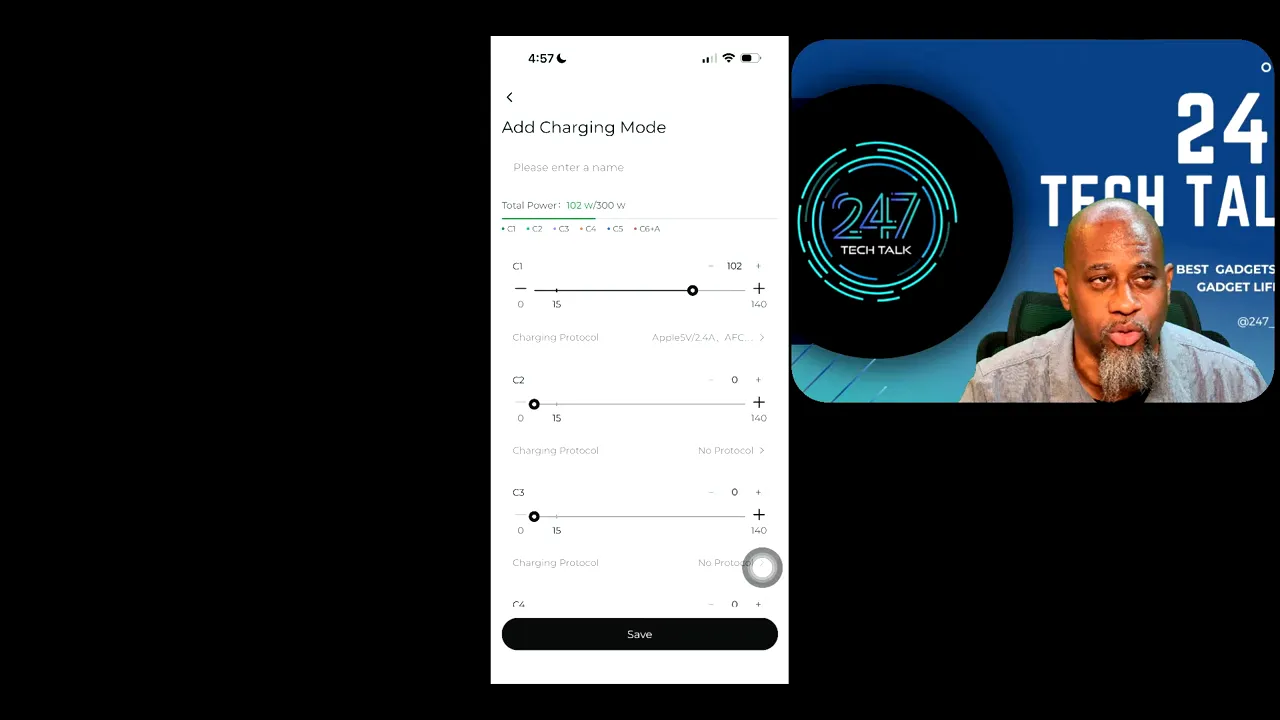
Custom Power exposes the charger’s total power budget and gives individual ports their own wattage controls.
Set a fixed wattage for a specific port
You can drag a slider, but you are not limited to rough adjustments. Tap the wattage value and enter the number directly.
Say you want one port to provide 85W. Enter 85, save the setting, and that port is configured for 85W. You can also set a port to 50W, 25W, or another suitable value based on the device connected there.
That is particularly handy for a device that only needs a fixed amount of power. If you have a 25W phone, for example, you can configure a port for 25W so it has the allocation it needs regardless of what else is connected to the desktop charger.
Saved assignments remain associated with the selected port. So once you create a setup that works for your desk, you do not have to start over every time you plug in your usual equipment.
The app will not let you exceed 300W
There is an important safeguard built into Custom Power. You can set high values on individual ports, but the app will not allow the combined allocation to go above the charger’s 300W device maximum output.
For instance, assigning 140W to one USB-C port and 100W to another brings the total to 240W. Trying to add another 75W would exceed the charger’s limit. The app stops that configuration instead of allowing you to create an impossible power plan.
That is exactly what it should do. The custom controls give you flexibility, but they do not let you make a mistake with the total power budget.
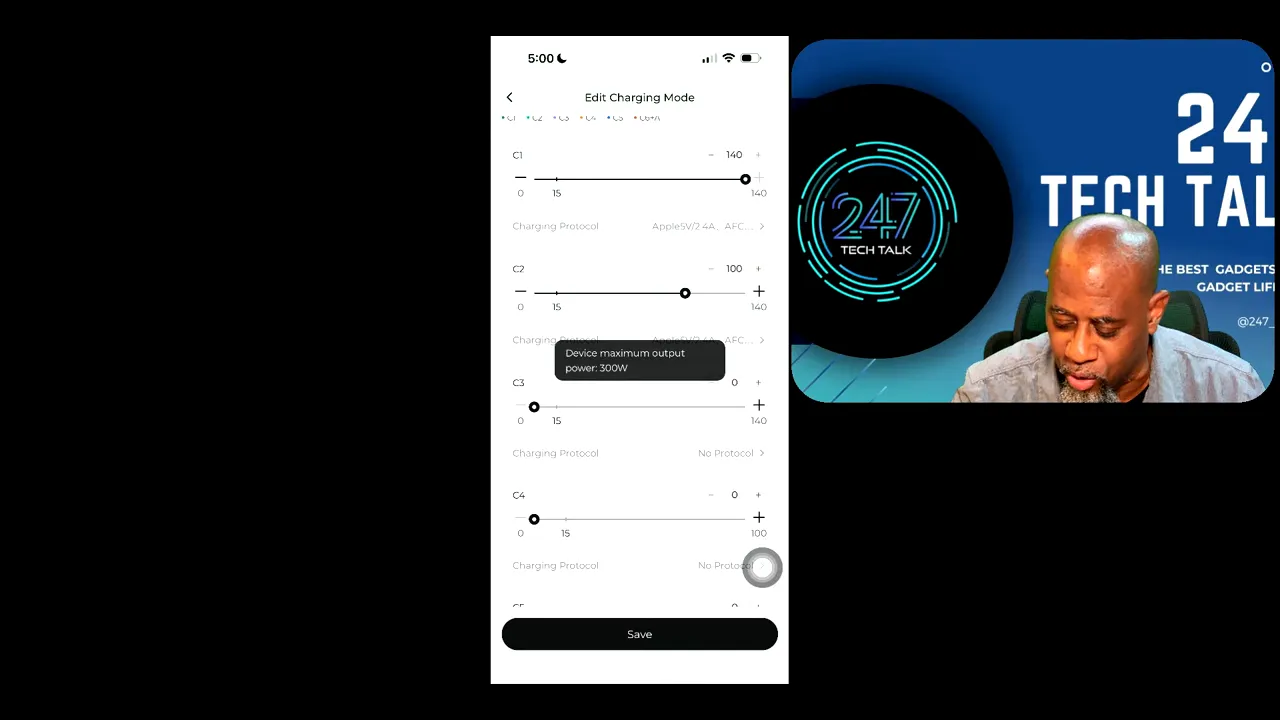
The app keeps every custom allocation within the charger’s 300W total-output limit.
So, does a 300W charger really need Wi-Fi and an app?
For a basic charger, probably not. But this is not a basic charger. With eight ports and a 300W total output budget, there is real value in knowing what each port is doing and being able to control how power is distributed.
The UGREENConnect app makes the Nexode Pro 300W more than a powerful desktop charging brick. It gives you live port monitoring, automatic power management, priority ports, DC voltage control, and the ability to assign exact wattage to individual ports.
Custom Power is the standout feature. Being able to configure and save port-level power allocations solves the exact problem that comes up when several devices are charging at the same time. The app and charger get two thumbs up.