The Anweller smart lock is built for the person who wants more options than a regular padlock and two keys. With a fingerprint sensor, keypad, Bluetooth app control, USB-C charging, and physical backup keys, it gives you several ways to get in when you need to.
That can be a real convenience for a side gate, backyard shed, locker, fence, or other access point where you may need to let a neighbor, family member, or trusted guest in while you are away. I put this lock through the setup process, programmed access methods, and then left it outdoors in real weather before testing each unlock option again.
What Comes With the Anweller Smart Lock
This is a straightforward package. Inside are the Anweller smart lock, a USB-A to USB-C charging cable, four physical keys, paperwork, and a small storage pouch.
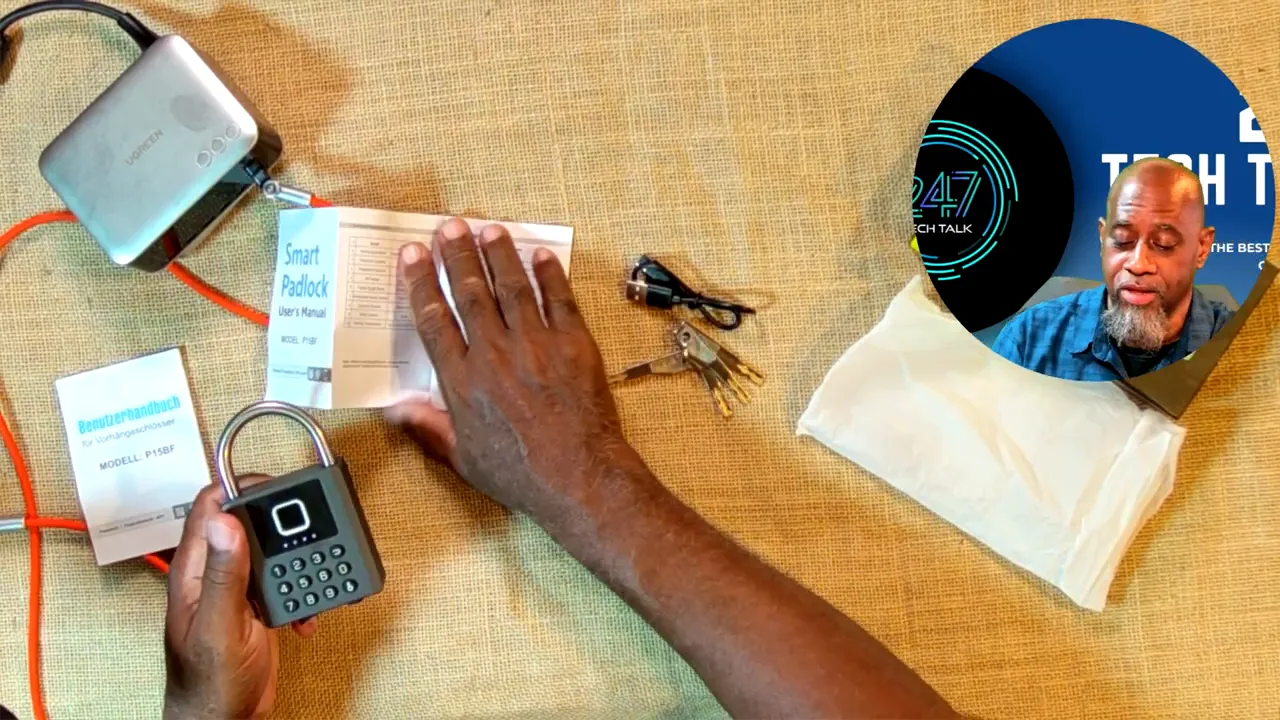
The package includes the lock, four backup keys, a USB charging cable, and printed paperwork.
The lock itself has a sturdy padlock-style body with a metal shackle. On the front, you have:
A square fingerprint reader
A number keypad for code access
Status lighting that shows activity and power status
At the bottom are the USB-C charging port and the protected keyhole for the supplied physical keys. That backup key option matters. Smart features are useful, but it is always good to have a traditional way in if the battery runs down or a phone is not nearby.
Why Multiple Access Methods Matter
The real selling point of the Anweller smart lock is flexibility. You are not stuck using one method every time. In testing, the lock was opened successfully through four different methods:
Bluetooth app control
Fingerprint recognition
Keypad code entry
Physical key access
For a gate situation, that is useful. Instead of handing someone a metal key that can get lost or copied, you can set up a code for them. If it is someone who uses the lock regularly, you can also add their fingerprint. And if technology ever decides to have a bad day, there are still physical keys.
Personally, for a neighbor who might need emergency access, I would lean toward a code instead of fingerprint enrollment. It is simpler for everybody involved and does not require them to come ahead of time to register a print.
Setting Up the App and Connecting the Lock
The Anweller smart lock uses the ESmart Lock app. Setup was pretty standard for a Bluetooth smart device: install the app, create an account, allow Bluetooth access, then scan for and add the lock.
Once the lock was found, the app requested an administrator password and account binding. It also asked for permissions related to Bluetooth, location, camera access for friend or QR-related features, and optional photo access for an avatar.
That is something worth considering before you buy. Smart devices often need permissions to deliver their connected features, but everybody has a different comfort level with app privacy and account requirements. The lock can still be operated at the keypad, fingerprint reader, and physical keyway, but app management does involve creating an account and granting the necessary permissions.
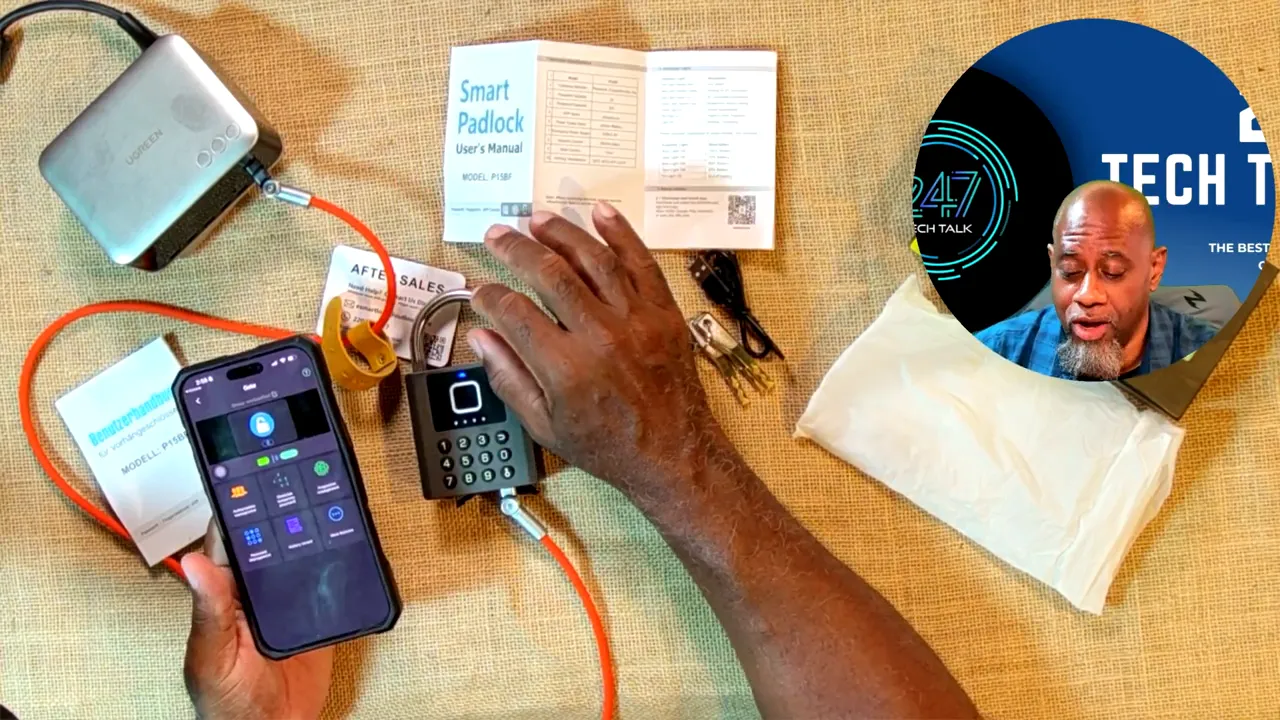
The app provides access to lock control and management features alongside the physical keypad and fingerprint reader.
Inside the app, the available controls include:
Lock and unlock control
Authorization management for other users
Temporary password generation
Fingerprint management
Password management
Access history records
Additional feature settings
One thing to understand is the Bluetooth range. This is not a Wi-Fi lock that you can operate from anywhere in the world. You need to be close enough for the phone and lock to connect over Bluetooth.
The lock also goes to sleep to reduce battery use. When that happens, reconnecting can require waking it by touching the lock. Once connected, app-based unlocking worked quickly.
Fingerprint Setup and Unlocking
Adding a fingerprint was simple. In the app, I went to fingerprint management, entered the administrator password, named the fingerprint, and followed the enrollment prompts. The phone vibrated during the process to confirm the registration steps.
Once saved, the fingerprint unlock worked immediately. Touch the sensor, the lock recognizes the print, and the shackle releases.
This was one of the more convenient parts of the Anweller smart lock. For everyday access, especially when you do not want to pull out a phone or remember a code, fingerprint entry is quick and easy.
Keypad Codes and Physical Keys
The keypad is the access method I would use most for trusted guests. A code is easy to share when needed, and the app includes password management and temporary password options.
For obvious reasons, the actual code was not displayed during testing, but entering the programmed code released the shackle as expected. The keypad gives the lock a practical everyday use case beyond being a gadget with a fingerprint sensor.
The supplied physical key also worked properly. The keyway is protected by a rubber cover, which is a welcome feature for an outdoor padlock. It helps keep dirt and debris away from the mechanical backup option.
Outdoor Test: Rain, Dust, and Summer Weather
After initial setup and indoor testing, the lock was placed outside on a side gate for a while. It was deliberately attached in a way that would not lock the actual gate shut until reliability had been confirmed. That is a smart precaution with any new lock, because nobody wants to discover a problem after securing the only way through.
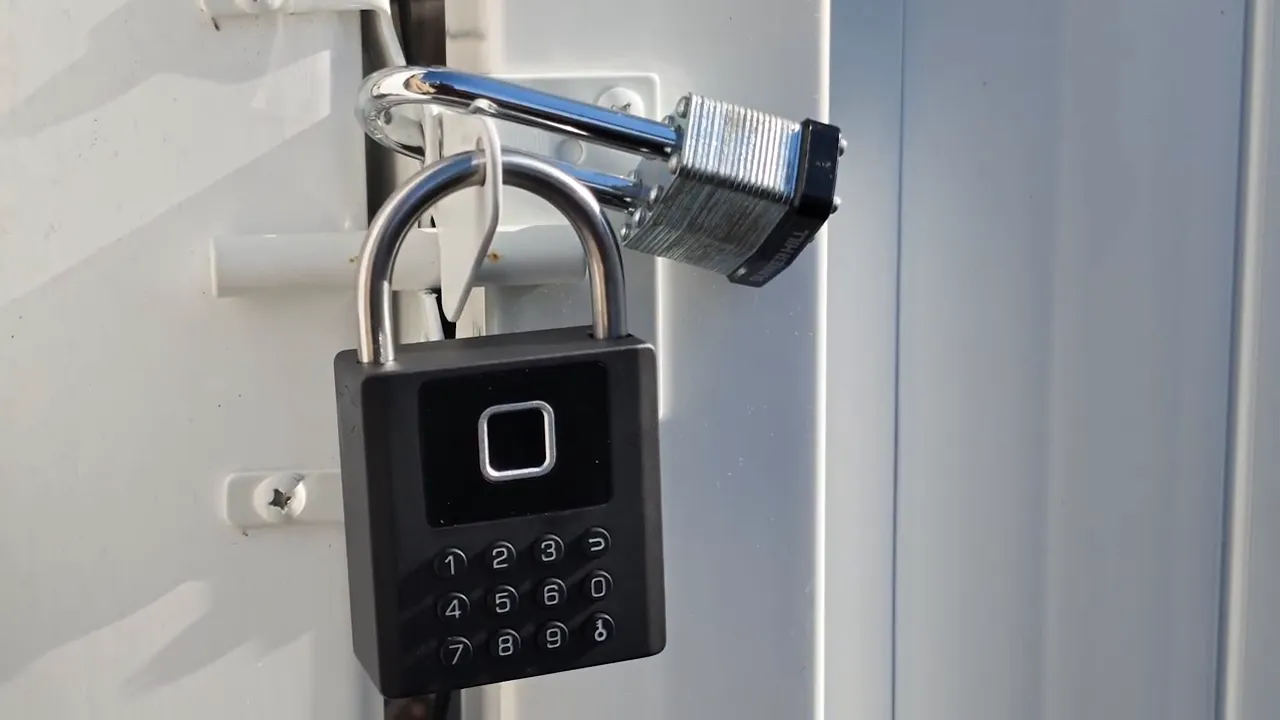
The lock was left outdoors on a side gate before its access methods were tested again.
After exposure to rain, dust, and normal outdoor summer conditions, the Anweller smart lock was still functioning. There was visible dust and dirt on the body, but the lock connected to the app and showed a healthy battery status.
All four tested access methods worked outdoors:
The phone connected through Bluetooth after the lock was awakened.
The app unlock command released the shackle.
The previously enrolled thumbprint opened the lock.
The physical key operated normally.
The keypad code also opened the lock.
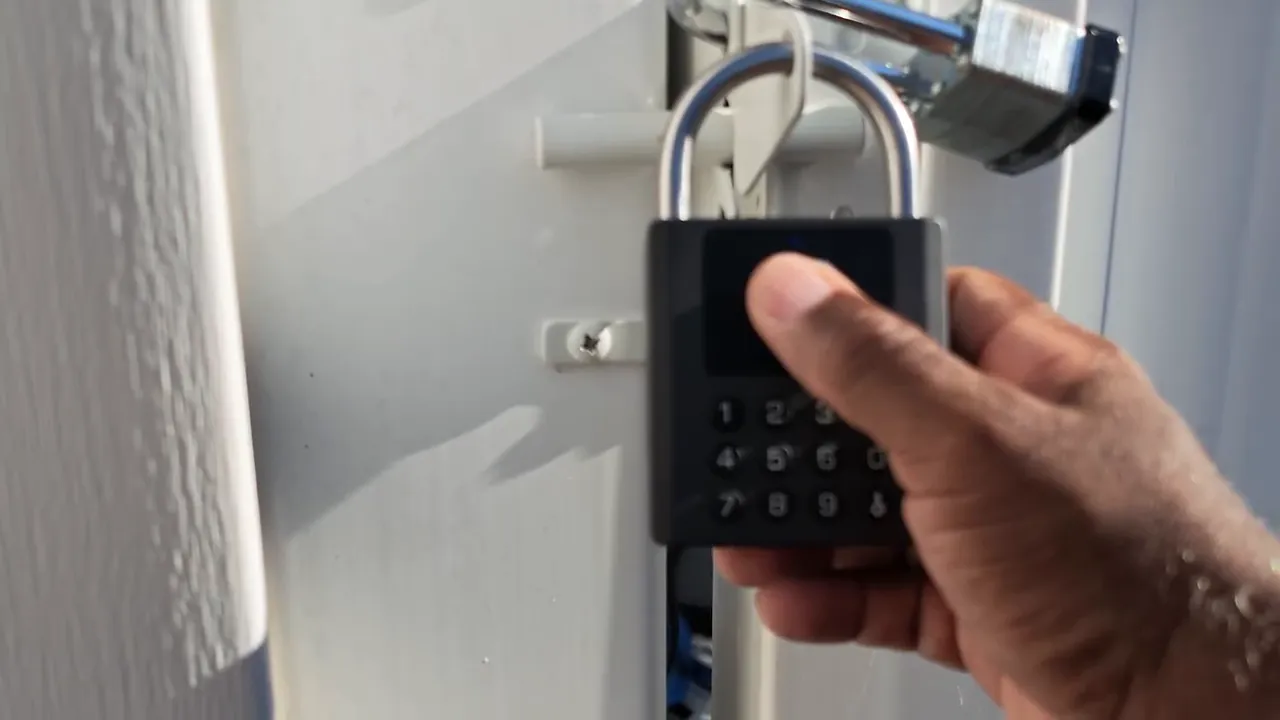
That is the test that matters most. It is one thing for a smart padlock to work perfectly on a table indoors. It is another thing for it to keep working after sitting outside with dust, rain, heat, and no daily use.
Practical Things to Know Before Using It
The Anweller smart lock performed well, but there are a few common-sense points to keep in mind.
Charge It Before You Depend on It
The lock uses USB-C charging, so it is easy to top up. Before installing it in a location that matters, make sure it is fully charged and test every access method you plan to rely on.
Keep the Physical Keys Somewhere Safe
Do not leave the backup keys right next to the lock. Store them securely and separately. They are there for a reason.
Test It Before Locking a Critical Entry Point
If you are using the Anweller smart lock on a gate, shed, or storage area, test the fingerprint, code, app, and key several times first. Use it on a noncritical latch during the first few days if possible.
Remember That App Control Is Bluetooth Based
The app is convenient, but you need to be within Bluetooth range. For remote access from far away, this lock would need a different type of connected setup than what was tested here.
Final Verdict on the Anweller Smart Lock
The Anweller smart lock gets a solid two thumbs up from this real-world test. Setup took a little time because of the app registration and permissions, but once it was configured, the main functions worked quickly and reliably.
The strongest feature is not just the fingerprint sensor. It has choices. You can unlock with your phone, fingerprint, keypad code, or a physical key. That makes it a practical option for shared access to a gate or other outdoor area, especially when you want to give somebody entry without handing over your only spare key.
After being left outside in rain and dust, the lock still passed the app, fingerprint, key, and code tests. If you want a rugged smart padlock with several ways to get in, the Anweller smart lock is a useful piece of security tech that did what it was supposed to do.
Check out the video review here: https://youtu.be/ykMVdIjhSbY